Schedule Slack announcements with your social posts
Slack can schedule a message you write yourself, but it can't sync announcements with your public social posts. Postuva posts to Slack channels through an incoming webhook, so your team hears about a launch at the same minute it goes out on X, LinkedIn or Bluesky.
- Connection
- Incoming webhook URL
- Formatting
- Slack markdown (mrkdwn) and images
- Native Slack scheduling
- Yes, for single messages you type
How do I schedule a Slack announcement?
- Create a Slack app. Go to api.slack.com/apps → Create New App → From scratch, and pick your workspace.
- Turn on incoming webhooks. Open Incoming Webhooks, switch it on, click Add New Webhook to Workspace and choose the channel.
- Connect in Postuva. Copy the webhook URL into Channels → Slack and give the channel a name.
- Schedule. Write the message and schedule it together with your public posts.
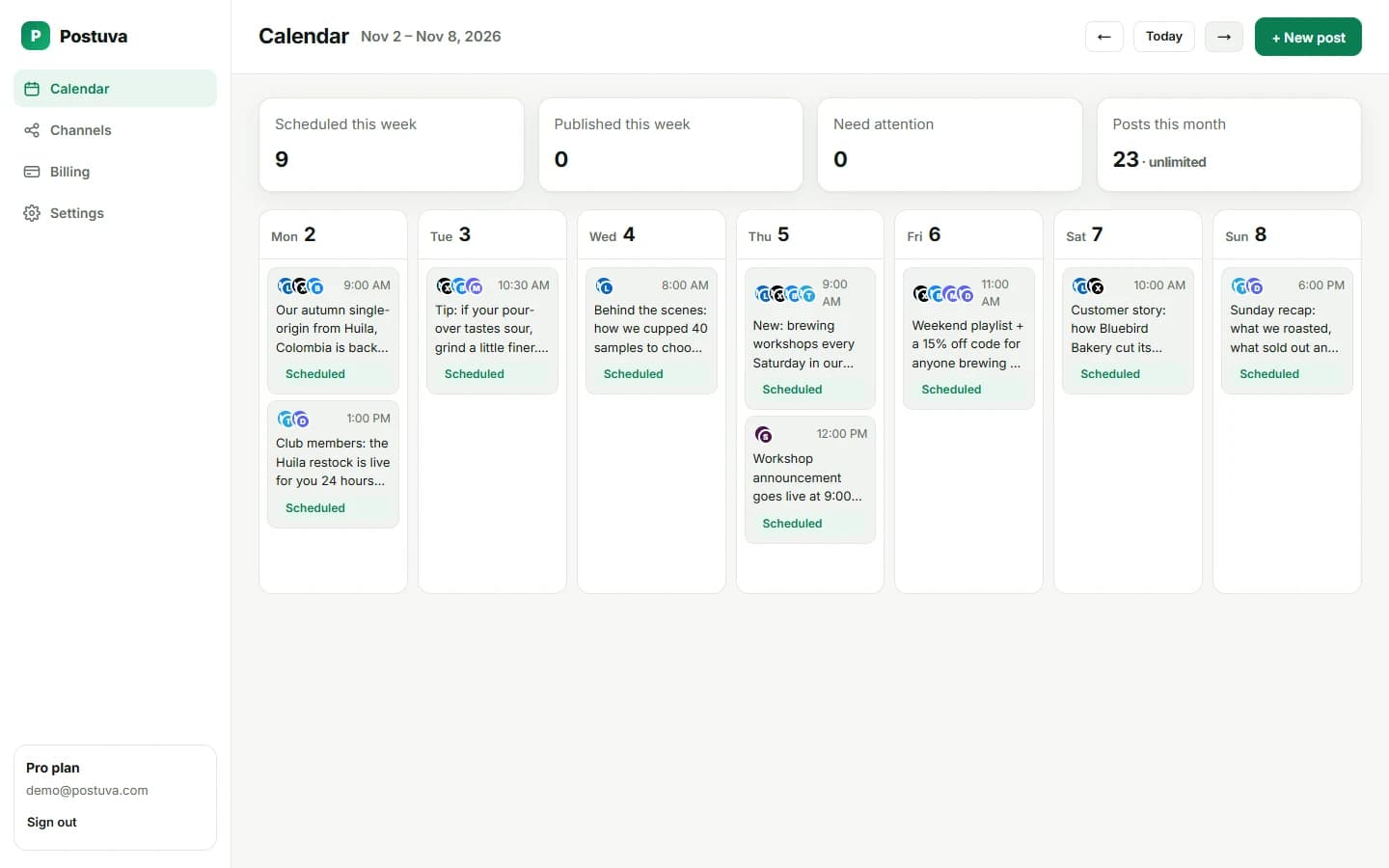
Why put Slack on your social media calendar?
Internal communication is part of every launch. When your team hears about an announcement at the same time as the public, they can share it in the first, most important hour. When customers in a shared Slack Connect or community Slack hear it from you directly, it feels personal. Putting Slack messages on the same calendar as your social posts makes that coordination automatic instead of something someone has to remember.
When does scheduling Slack posts with a social scheduler make sense?
- Launch days: tell the team and the public at the same moment.
- Weekly updates that go to a community Slack and to LinkedIn.
- Agencies sharing scheduled client posts in a client's Slack channel.
Ideas for scheduled Slack posts
- Launch-day heads-up: “Our announcement goes live at 9:00, here's the link to share.”
- A weekly “what we published” digest for sales and support teams.
- Reminders for recurring community events or office hours.
- Agency client channels: a preview of next week's scheduled posts.
How do Slack's own scheduled messages compare?
Slack lets you schedule a message you type yourself: click the arrow next to Send and pick a time. That's great for personal messages. It doesn't know about your public posts, though, and it can't post the same news to LinkedIn, X or a Discord community. A social scheduler that includes Slack keeps every audience, internal and external, on one plan.
| Slack's Schedule message | Postuva | |
|---|---|---|
| Schedule a Slack message | Yes | Yes |
| Same news to LinkedIn, X, Discord | No | Yes |
| Calendar of every channel | No | Yes |
| Posts as | You | Your Slack app |
How do you set up a Slack incoming webhook?
Incoming webhooks belong to a Slack app. Creating one takes about two minutes and needs permission to install apps in your workspace (ask an admin if you don't have it).
Go to api.slack.com/apps, click Create New App, choose From scratch, give it a name such as “Postuva” and pick your workspace. Open Incoming Webhooks in the sidebar, switch the toggle on, then click Add New Webhook to Workspace. Slack asks which channel the app may post to; choose it and click Allow. Copy the webhook URL that appears and paste it into Postuva.
You can create several webhooks for different channels in the same app, for example #marketing and #general, and connect each one as its own channel.
Worked example: launch-day coordination
| Time | Channel | Message |
|---|---|---|
| 08:45 | Slack #team | “Announcement goes live at 9:00. Link coming in 15 minutes, please share from your own accounts 🙌” |
| 09:00 | LinkedIn, X, Bluesky | The public announcement, tailored per network |
| 09:00 | Discord, Telegram | Community version with a thank-you to beta testers |
| 09:05 | Slack #team | “It's live! LinkedIn: … X: … Please like and reshare.” |
Slack formatting cheat sheet
| You write | Slack shows |
|---|---|
| *bold* | bold text |
| _italic_ | italic text |
| ~strike~ | struck-through text |
| <https://example.com|our post> | a link labelled “our post” |
| • or - at the start of a line | a bullet list |
Slack for agencies and client communication
Many agencies share a Slack Connect channel with each client. Scheduling a short “here's what's going out this week” message every Monday keeps clients informed without an extra meeting, and a message on launch day lets their team share the posts immediately. Because each webhook only posts into its own channel, client channels stay separate. Connect each client's channel in that client's workspace.
Security checklist for Slack webhooks
- Create the webhook from a dedicated Slack app named after the tool, so it's easy to audit.
- Use one webhook per channel; never reuse a webhook across tools.
- If a webhook URL is shared by mistake, delete it in the app's Incoming Webhooks page and connect a new one.
- Remove the app from your workspace if you stop using the tool.
Frequently asked questions
Does Postuva read my Slack messages?
No. An incoming webhook can only post into the channel you picked.
Can I post images to Slack?
Yes, images added to the post are shown as image blocks.
Can I format messages with bold and links?
Yes, Slack's mrkdwn formatting works: *bold*, _italic_ and <https://example.com|links>.
What happens if the webhook is removed?
The post fails with Slack's error and the channel is flagged so you can connect a new webhook.
Can I schedule Slack messages for free?
Yes, Slack is included in the free plan.
Who do scheduled Slack messages appear from?
From the Slack app that owns the webhook, with its name and icon.
Can I post to private Slack channels?
Yes, choose the private channel when you create the webhook.
Can I schedule a Slack message to several channels?
Yes. Create a webhook for each channel, connect each one in Postuva and select all of them on the post.
Does scheduling Slack posts need a paid Slack plan?
No. Incoming webhooks work on Slack's free plan too, as long as you can install apps in the workspace.
Can Postuva post to Slack and Discord at the same time?
Yes. Select both channels on one post and each receives its own formatted message at the scheduled time.