A social media content calendar you can read at a glance
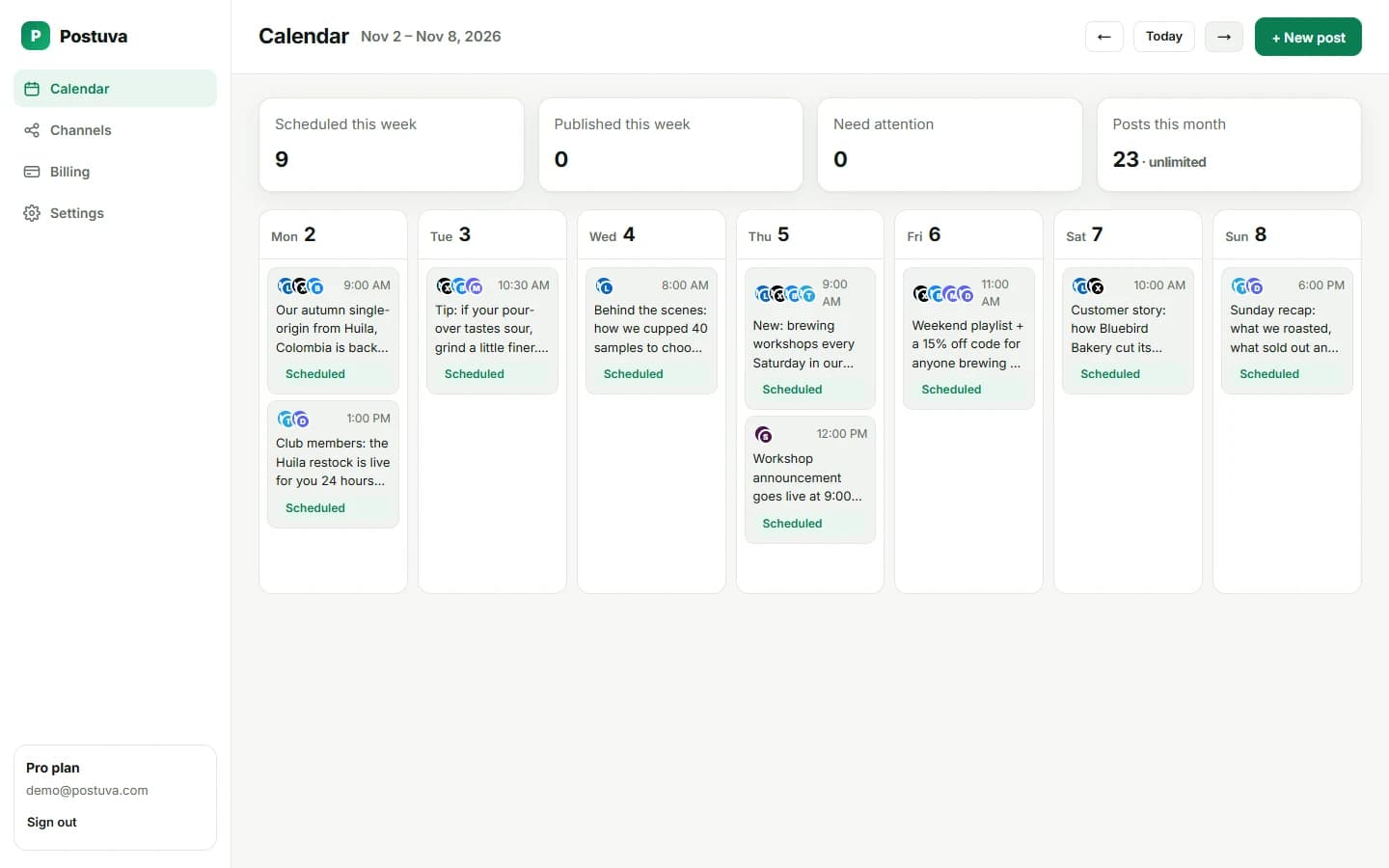
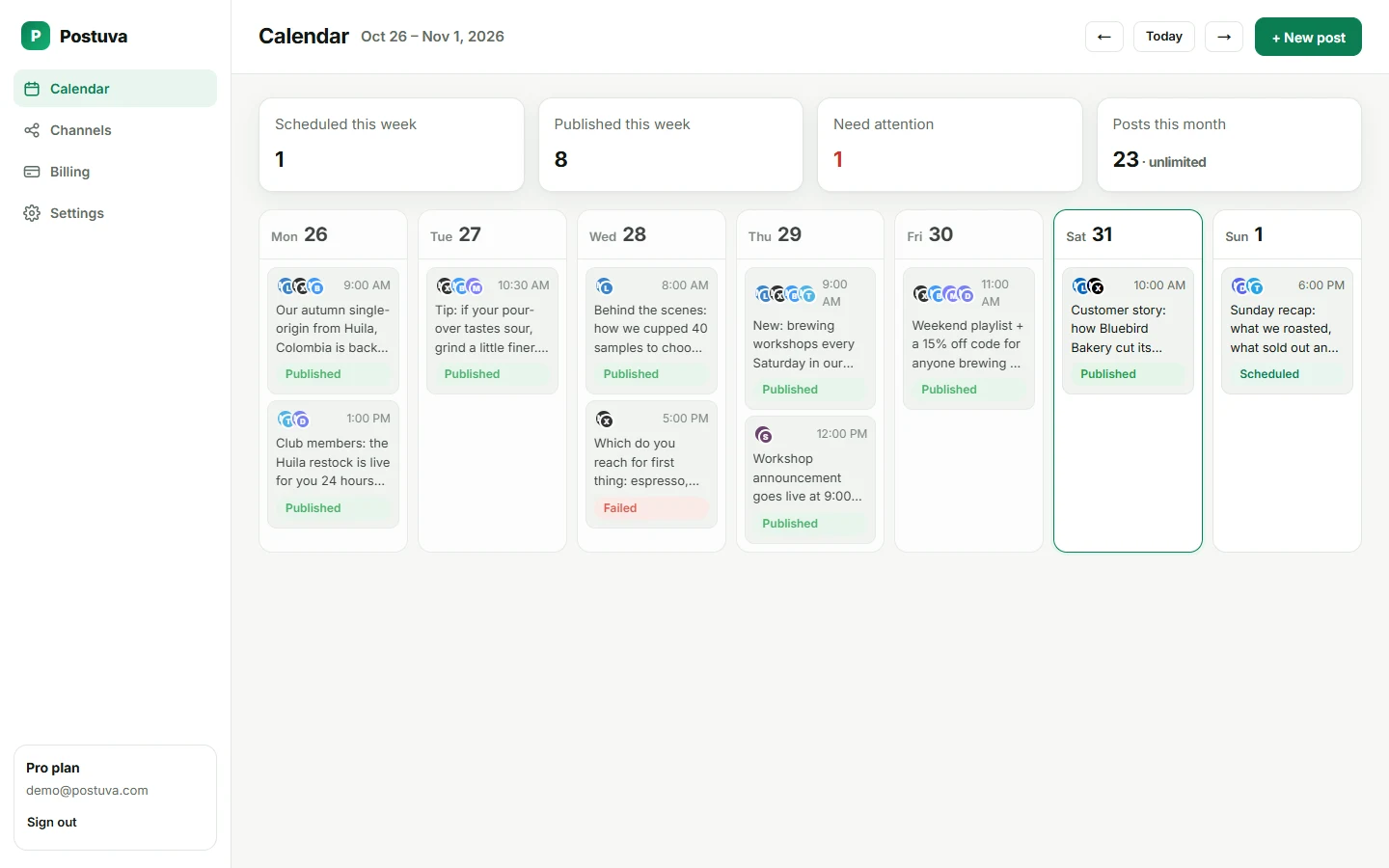
Postuva's content calendar shows a week of posts across every connected network in one view. Each day lists its posts with the channels they go to, the time and their status (scheduled, published or needing attention). Click an empty day to add a post, or click a post to edit or reschedule it.
What should a social media content calendar show?
- What goes out each day and at what time
- Which networks each post goes to
- Whether it was published, is scheduled, or failed
- Gaps where nothing is planned
Take the tour
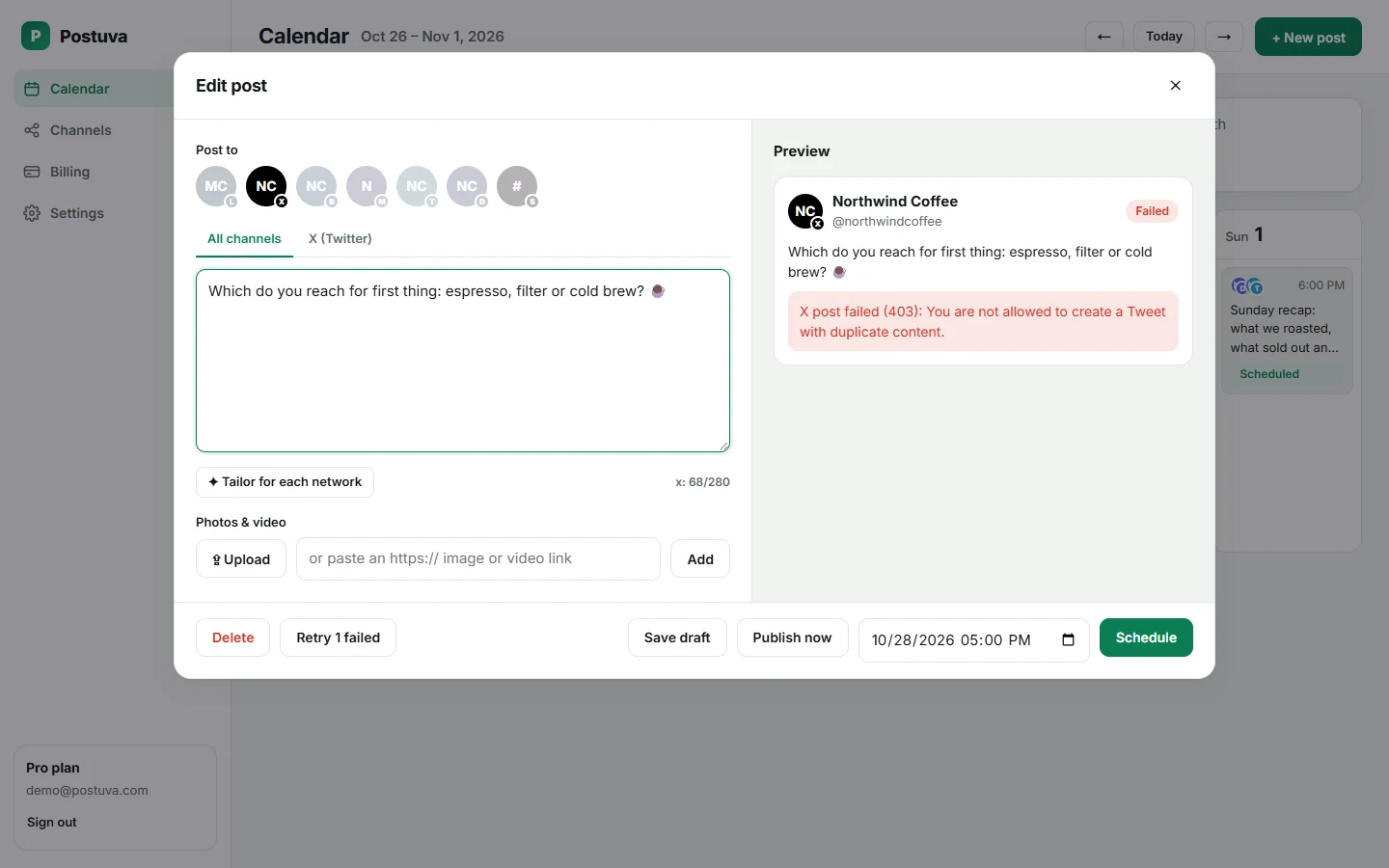
A real recording of the calendar: moving between weeks, opening a post tailored for three networks, and inspecting a post that needs attention.
Spreadsheet vs content calendar tool
A spreadsheet is a fine place to brainstorm. Once ideas are ready, putting them on a calendar that also publishes saves the copy-and-paste step and the missed posts.
| Spreadsheet | Postuva calendar | |
|---|---|---|
| Plan posts | Yes | Yes |
| Publishes automatically | No | Yes |
| Shows published or failed | Manual | Automatic |
| Character limits per network | Manual | Checked live |
| Cost | Free | Free for 3 channels |
What do the statuses mean?
| Status | Meaning | What to do |
|---|---|---|
| Draft | Saved but not scheduled | Finish it and press Schedule |
| Scheduled | Waiting for its time | Nothing, or edit any time before then |
| Publishing | Being sent right now | Wait a few seconds |
| Published | Live on the network, with a link | Open it and reply to comments |
| Failed | The network refused it, with the reason shown | Fix and retry, or reconnect the channel |
How do you plan a month with the calendar?
- Block your themes. Decide what each weekday is for: tips, stories, offers, community.
- Fill one week at a time. Click each empty day and add the post; the next-week arrow keeps you moving.
- Balance the networks. Glance at the channel avatars on each post to spot a network you've neglected.
- Leave room. Keep a slot or two free each week for timely posts.
Content calendar tips from busy teams
- Schedule at least one week ahead, so a sick day doesn't break your rhythm.
- Check the stat cards at the top: scheduled, published and needing attention.
- Use drafts as an idea backlog; schedule them when the right week comes.
- Review the past week every Monday before planning the next.
Content calendar vs content queue
Some tools organise posts as queues: each channel has a list, and posts fill predefined time slots. Queues are good for steady, repeated content. Calendars are better for planning: you see what happens on each day across every network, so campaigns, launches and themes line up. Postuva uses a calendar because most people plan by week and by event, not by channel.
Who uses the content calendar, and how?
| Role | How they use it |
|---|---|
| Founder or solo marketer | Plans the week every Monday and checks it daily |
| Social media manager | Balances themes and networks, fixes anything flagged |
| Agency account lead | Switches workspace per client, reviews the week before sign-off |
| Team members | Look up what's going out so they can amplify it |
Content calendar best practices
- Plan by theme first. Assign each weekday a pillar so planning becomes filling in blanks.
- Mark key dates. Add launches, events and holidays as anchors, then plan around them.
- Keep a buffer. Always have the next week scheduled, so a busy week doesn't break the rhythm.
- Review on Mondays. Check last week's results and anything flagged, then confirm this week.
- Recycle winners. Bring back your best ideas with a fresh angle every month or two.
Calendar views for different jobs
The week view is the heart of planning because most content rhythms are weekly: tips on Tuesday, stories on Thursday, a recap on Friday. Each day lists its posts in time order with the channels they go to, so you can spot an overloaded Monday or a network you haven't posted to all week.
The stat cards above the calendar summarise the week: how many posts are scheduled, how many were published and how many need attention, plus your posts this month against your plan. Together they answer the three questions you ask every Monday morning: what's coming, what went out, and what's broken.
From calendar to results
A calendar is only useful if it changes what you do next. At the end of each month, open last month's weeks, click your published posts and note which ones performed best on each network. Then adjust next month's themes: more of the pillars that worked, fewer of those that didn't. The calendar keeps the history in one place, so this review takes minutes instead of an afternoon spent digging through five apps.
Frequently asked questions
Is there a free content calendar template?
Yes. See our social media content calendar template guide.
Does the calendar show my timezone?
Times are shown in your browser's timezone, and you can set a timezone for each workspace.
Can I see past posts on the calendar?
Yes. Move back a week with the arrow to see what was published, with links to each live post.
Is the content calendar free?
Yes, the calendar is part of every plan, including the free plan.
Can I drag and drop posts?
Today you reschedule by opening a post and changing its time. Drag and drop is on the roadmap.
Can teammates see the same calendar?
Yes. Everyone in a workspace sees the same calendar, so the whole team knows what's going out.
Does the calendar show posts for every network?
Yes. Each post shows the avatars of the channels it goes to, with time and status.