Schedule Pinterest pins to any board
To schedule pins with Postuva, connect Pinterest with its official sign-in and each of your boards becomes a channel. Upload a vertical image, use the first line as the pin title and the rest as the description, add your link and pick a time. Postuva creates the pin on that board at that minute.
- Pin title
- First line, up to 100 characters
- Description
- Up to 500 characters
- Image
- 1 per pin, 2:3 ratio works best
- Boards
- Each board is its own channel
- Price
- Free for 3 channels
Why schedule Pinterest pins?
Pinterest works more like a search engine than a social network. A pin can keep bringing visitors to your site for months after it's published, so steady pinning over time builds traffic in a way a burst of pins on one day doesn't. Scheduling makes that steadiness easy: prepare a batch of pins once and spread them across the following weeks.
Postuva's Pinterest integration is built for that: every board you own is its own channel, pins link to your website, and the same product photo can go to Instagram and Facebook in the same step with captions written for each network.
How do I schedule a pin with Postuva?
- Connect Pinterest. Open Channels and press Connect next to Pinterest. Pinterest's sign-in opens in a pop-up; approve access and each of your boards appears as a channel.
- Upload the image. Press New post and upload one image. Vertical images at a 2:3 ratio (1000 × 1500 pixels) take up the most room in the feed.
- Write the title and description. The first line becomes the pin title and the rest the description. Include the words people would search for.
- Add your link. Paste the page the pin should link to. Postuva uses the first link in the post as the pin's destination.
- Pick the board and time. Select one or more board channels, choose the time and press Schedule.
How do I write pins that people find?
Because people search Pinterest, the words in your pin title and description matter as much as the image. Describe what's in the pin the way someone would search for it: “Easy pour-over coffee guide for beginners” rather than “Morning ritual”. Two or three natural sentences in the description beat a list of hashtags.
Use a clear vertical image with readable text overlay if it's a guide or recipe, and link to the exact page that delivers what the pin promises. Pins that send people to a homepage instead of the promised recipe or product tend to be saved less.
How many pins should I schedule?
Pinterest's own guidance favours fresh pins, meaning new images, over repinning the same image again and again. For most small brands and bloggers, one to five new pins a day spread across relevant boards is plenty; quality and relevance matter more than volume.
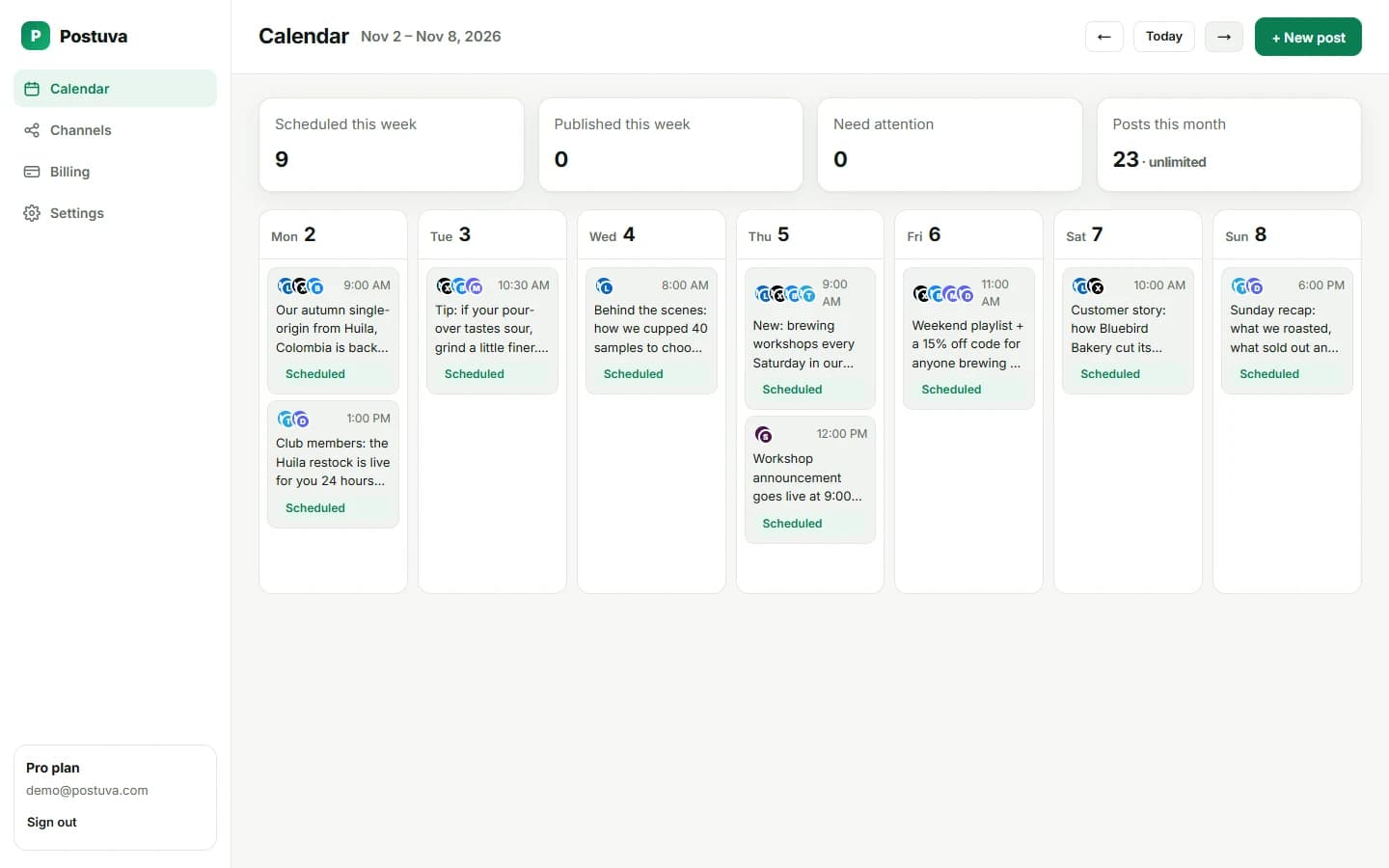
A simple routine: when you publish a new blog post or product, design two or three pin images for it and schedule them a few days apart on different boards. Postuva's calendar shows exactly what's lined up for each board.
What happens if a scheduled Pinterest post fails?
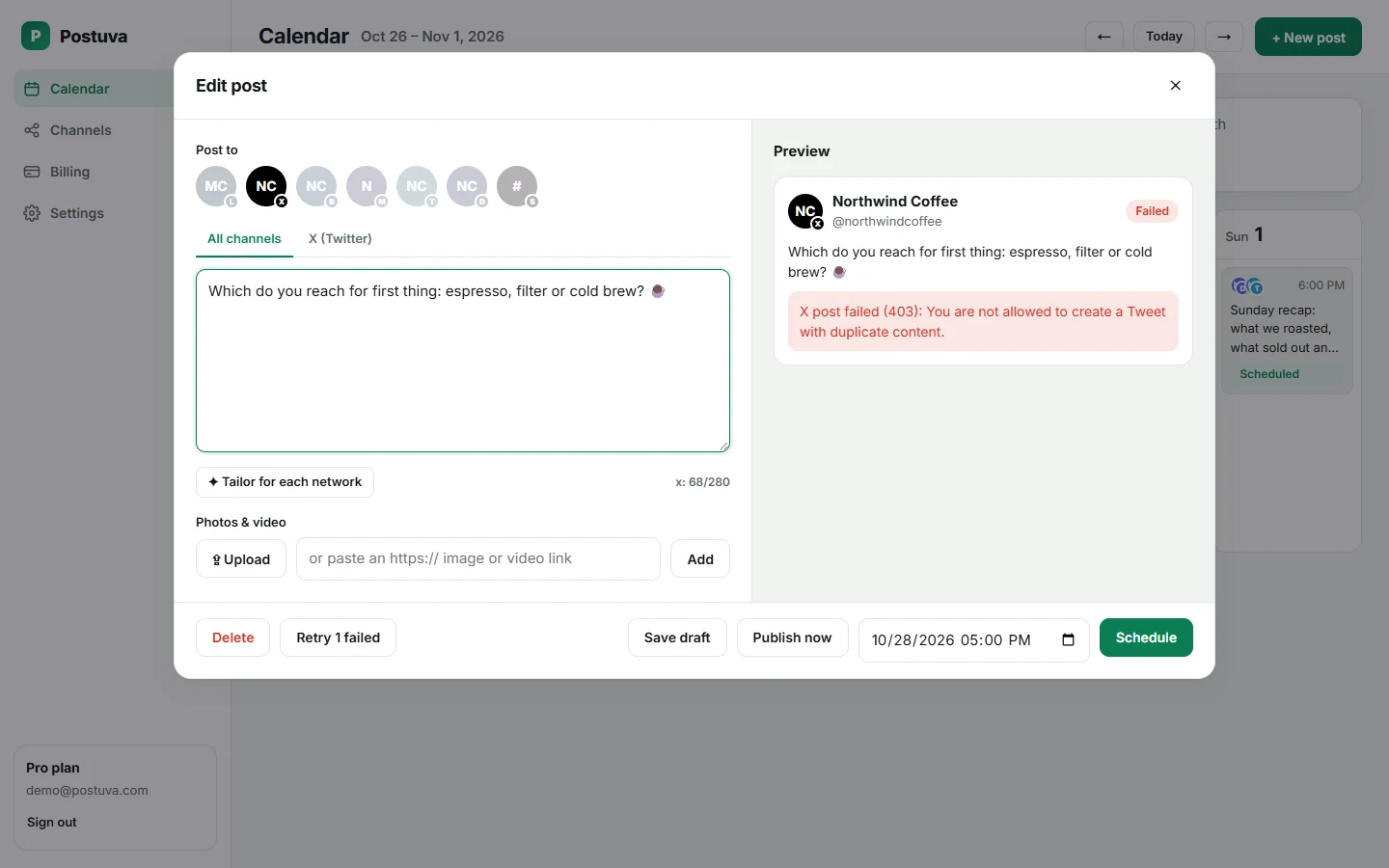
Networks refuse posts for a handful of reasons: an expired connection, media in a format they don't accept, a caption over the limit or a temporary outage on their side. Postuva handles each one differently. Temporary errors (timeouts, rate limits, the network being down) are retried automatically after one minute, five minutes and thirty minutes. Permanent errors are not retried, because sending the same broken request again only wastes time.
When a post can't be published, it turns red on the calendar and shows Pinterest's exact error message, not a vague “something went wrong”. If Pinterest's access has expired, the channel shows a Reconnect button. Fix the cause, press Retry and the post goes out straight away.
Is it safe to connect Pinterest to Postuva?
Yes. Postuva connects through Pinterest's official sign-in, which opens in a small pop-up window on Pinterest's own website. You approve exactly what Postuva may do there; Postuva never sees your password. The access token Pinterest returns is encrypted with AES-256-GCM before it's stored, and it's only decrypted at the moment a post is published.
You can disconnect at any time, either from Postuva's Channels page or from Pinterest's Settings → Security and logins → Apps. Disconnecting deletes the stored token immediately. Posts already published stay on Pinterest; scheduled posts for that channel stop.
How much does it cost to schedule Pinterest posts?
The free plan includes 3 channels, 30 scheduled posts a month and 20 AI rewrites, with no time limit and no card. That's enough to schedule Pinterest alongside two other networks and see whether planning ahead works for you.
Paid plans start at $15 a month (Creator: 10 channels, unlimited posts, 300 AI rewrites). Pro at $29 adds approvals, extra workspaces and team members, and Agency at $79 covers 150 channels for client work. Yearly billing gives you two months free. Every plan includes every network, so Pinterest never costs extra.
Frequently asked questions
Can I schedule pins for free?
Yes. The free plan includes 3 channels; each Pinterest board you use counts as one channel.
Can I schedule video pins or Idea pins?
Not yet. Postuva schedules standard image pins with a link.
Do I need a Pinterest business account?
A free business account is recommended because it gives you analytics, but personal accounts can be connected too.
Can I pin the same image to several boards?
Yes. Select several board channels in the composer and Postuva creates a pin on each one.